
Add a vehicle by scanning its registration card
The app reads the registration card (libreta) on your iPhone and fills in the details. You check everything before saving.
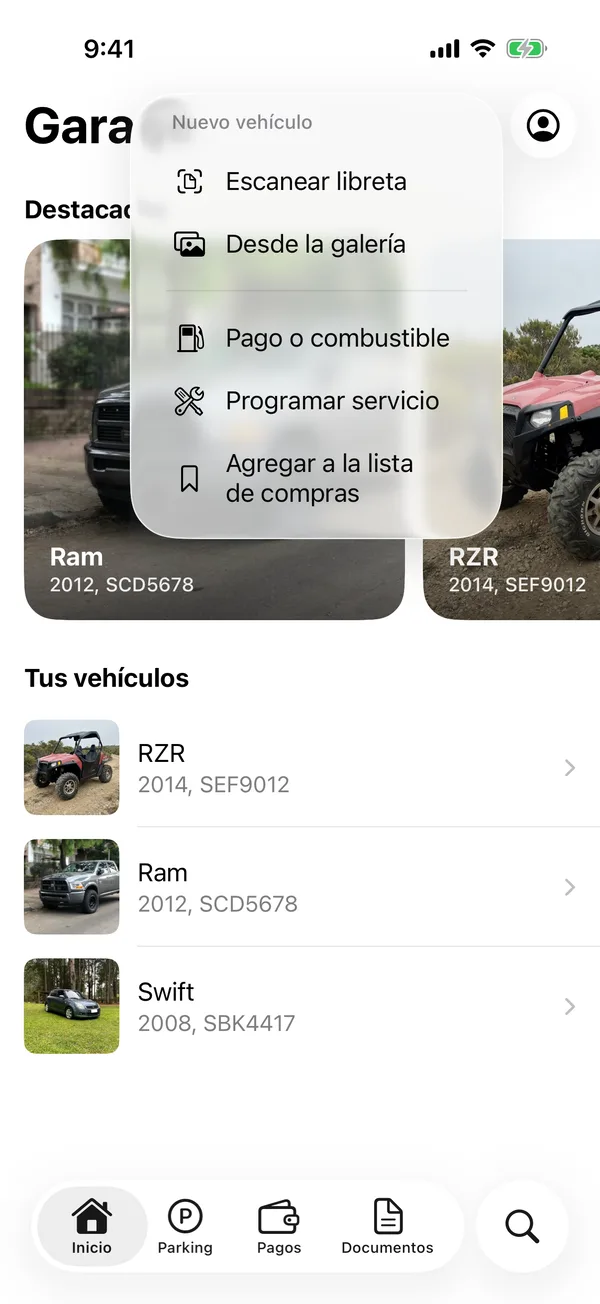
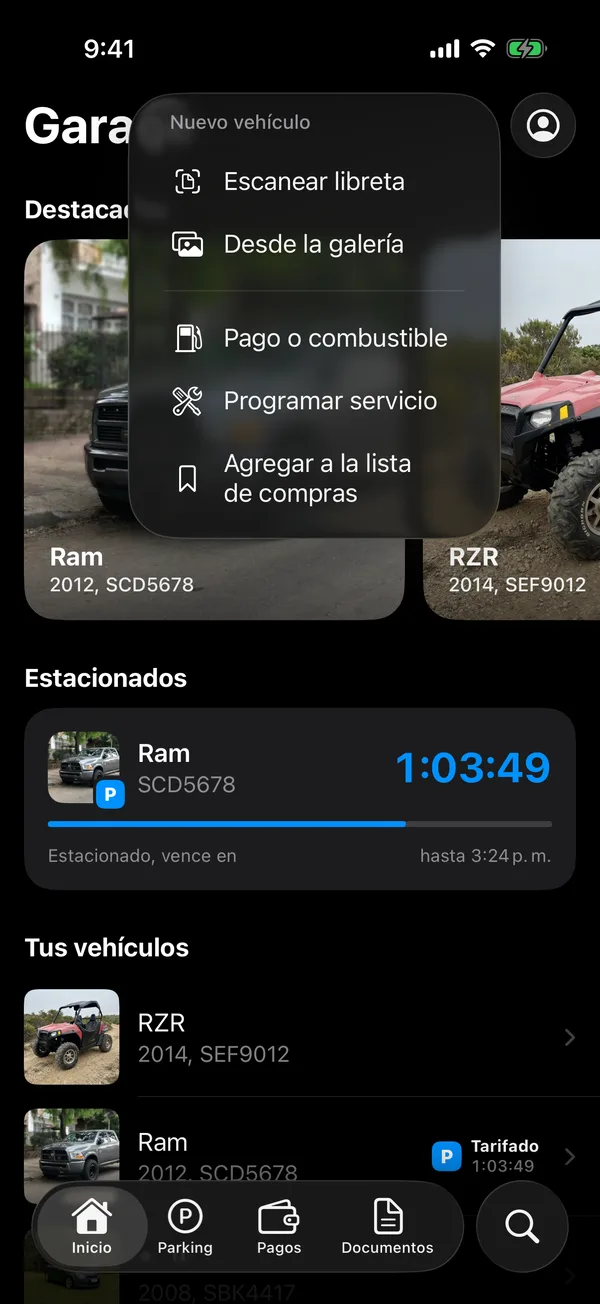
- On Home, tap + at the top right.
- Under New vehicle, tap Scan registration to use the camera, or From photo library if you already have a photo of the card.
- Point at the registration card. If you chose a photo, adjust the crop and tap Scan document.
- On Review, check the details: what was read is under Detected, what’s missing under To complete. Tap any field to correct it.
- Tap Confirm & continue.
- On Vehicle photo, tap Choose photos or Take photo, or Skip, add later. The first photo is the cover.
- On Details, add an Alias if you like (for example “Work truck”), check the Color and Type, and tap Save.
The new vehicle’s page opens.
The image of the card is encrypted on your iPhone before it’s uploaded: only you and the people you share the vehicle with can see it. See End-to-end encryption.
If the app tells you something
- Already in your garage: that vehicle is already there. Tap Update vehicle to change the card’s photo or details, or View vehicle.
- Registered to another user: someone else has that vehicle in their garage. See Claim a vehicle registered by someone else.
- Vehicle limit reached: your plan has no room for another vehicle. The alert shows how to upgrade.
- No text detected: the photo couldn’t be read. Try with more light and the card straight on, or continue and fill in the details by hand.
Add a vehicle without scanning
On some plans you can enter the details by hand. Turn on Manual vehicle entry in Account, Look & feel, then tap Enter manually in the first step.
More in Getting started
Didn’t find what you were looking for? Write to [email protected] and we’ll get back to you.