
See or change your plan
Starter, Pro, Fleet and Dealership: what each includes, how to upgrade and how to cancel.
- On Home, tap your account button.
- Tap Subscription.
- Choose Monthly or Annual and swipe to see each plan.
- Tap Upgrade to and the plan, and confirm the purchase with Apple.
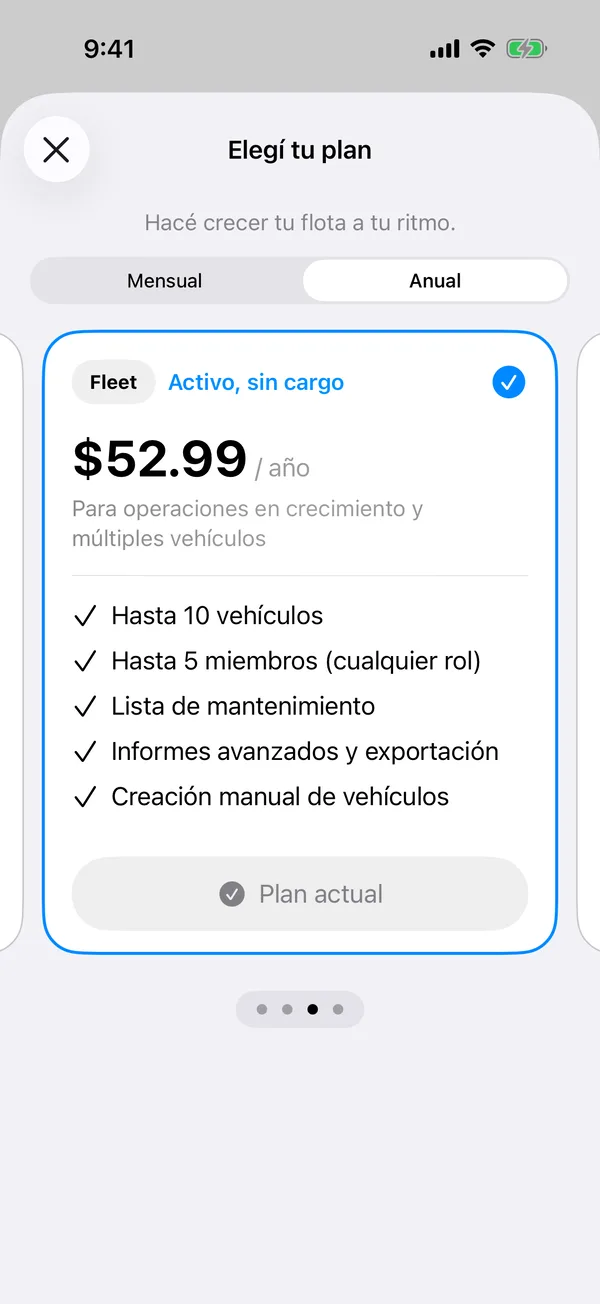
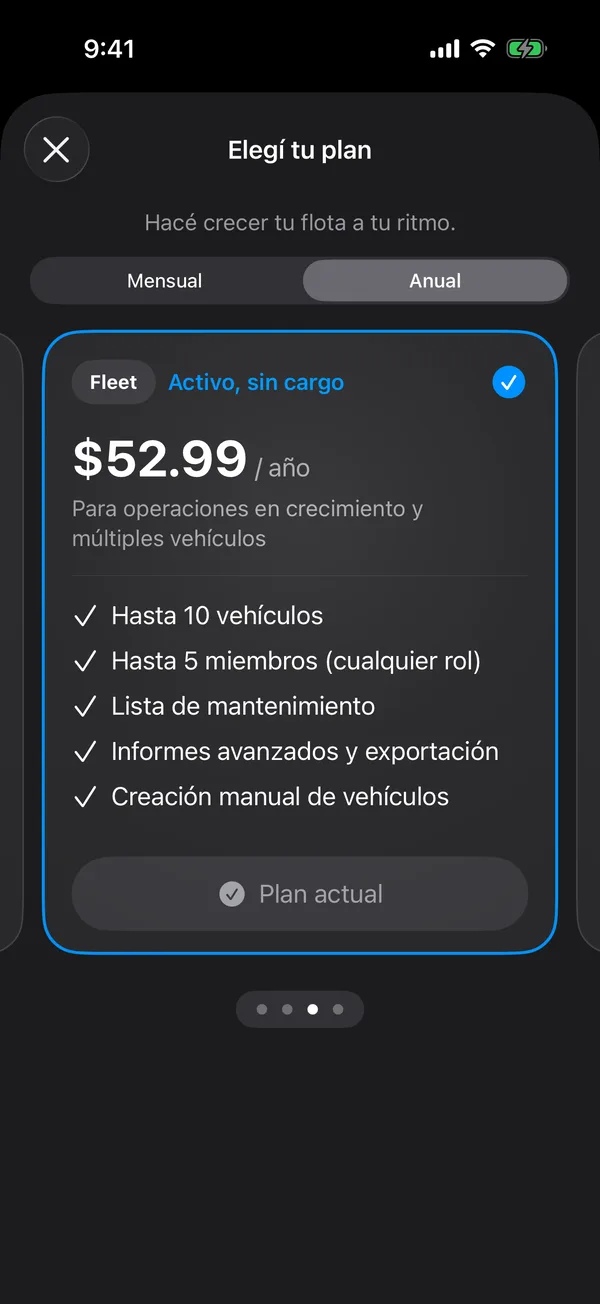
Your current plan says Current plan. The change can take a few seconds.
Manage or cancel
On your plan’s card, tap Manage subscription. Apple’s subscriptions sheet opens, where you can change or cancel.
Restore purchases or redeem a code
In your account, tap Restore purchases if you changed iPhones, or Redeem Code if you have an offer code.
Prices and what each plan includes are also on the GarageApp page.
More in Account and settings
Didn’t find what you were looking for? Write to [email protected] and we’ll get back to you.